
We’ve updated our Gravity Forms IP Location Add-On!
Our plugin integrates with IPStack to intelligently detect user locations by IP address. This allows you to customise your forms based on country, city, region, and more.
What’s New?
- Expanded Location Data: Use merge tags like {user:country}, {user:city}, {user:region}, {user:continent}, {user:latitude}, {user:longitude}
- Auto-populate Hidden Fields: Automatically capture location data—perfect for analytics and personalised marketing.
- Country-based Restrictions: Easily restrict forms based on country by IP address, controlling which users can submit forms from specified locations. ( let us know if you need more countries added )
- Enhanced Caching: Multi-layered caching reduces API calls and improves performance.
Common Use Cases:
- Restricting country by IP for enhanced security and targeted form handling
- Region-specific promotions
- Address validation
- Personalised content and pricing
- Compliance with geographic service restrictions
Getting Started:
- Install the plugin and activate via the WordPress plugins menu.
- Sign up at IPStack and obtain your API key.
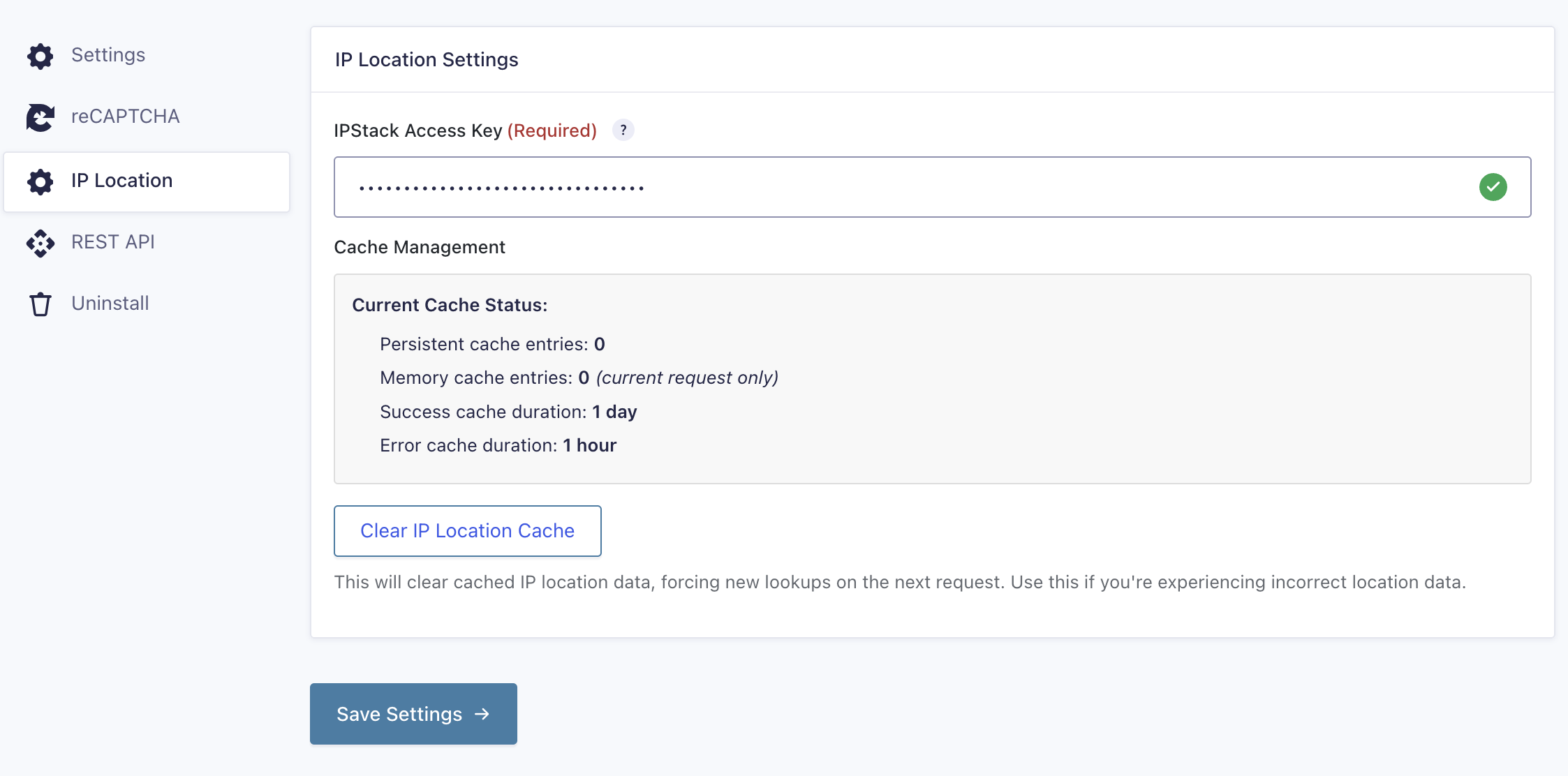
- Enter your API key under Forms → Settings → IP Location.
- Use the new merge tags in your forms or set them as default values in hidden fields.
Happy geolocating!
For each form you can Auto-Populate a Hidden Field with real Country of origin
- Edit your form and add a Dropdown field.
- In the dropdown field settings, enable Allow field to be populated dynamically.
- Set the parameter name to user_country.
- In the default value, use {user:country} to auto-fill with the detected country.
How to Log Location Data to Entry Notes
- Edit your form and go to Settings > IP Location.
- Ensure Log location data to entry notes is enabled (default behaviour).
- Submit the form as a test and view the entry. The location data will appear in the entry notes.
How to Restrict Form by Country
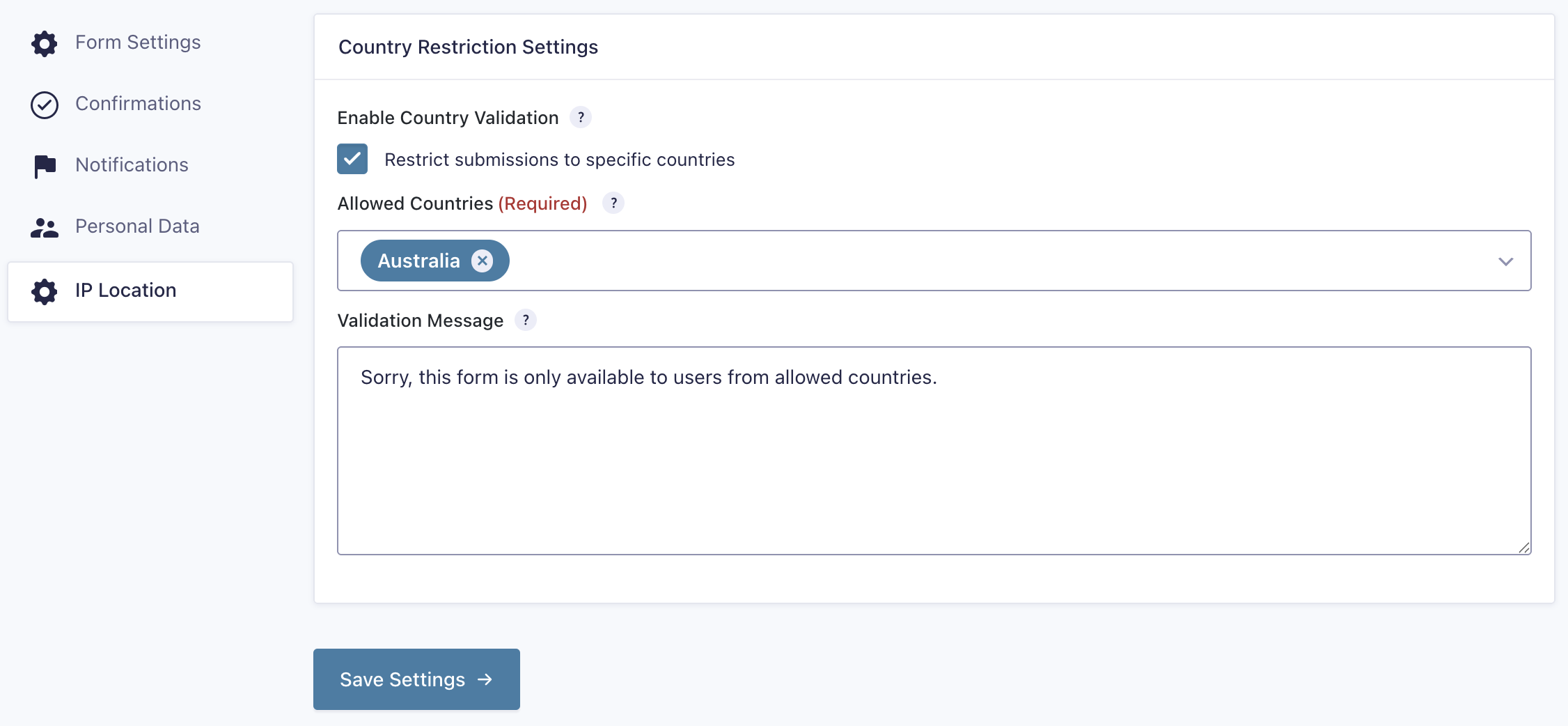
- Go to your form’s IP Location settings.
- Enable Country Validation.
- Select the allowed Countries
How to Clear Cached Location Data
- Go to Forms > Settings > IP Location.
- Click Clear Cache to remove all stored IP location data.
- This forces fresh API calls on the next form submissions.
How to Capture Full Location Details in a Form
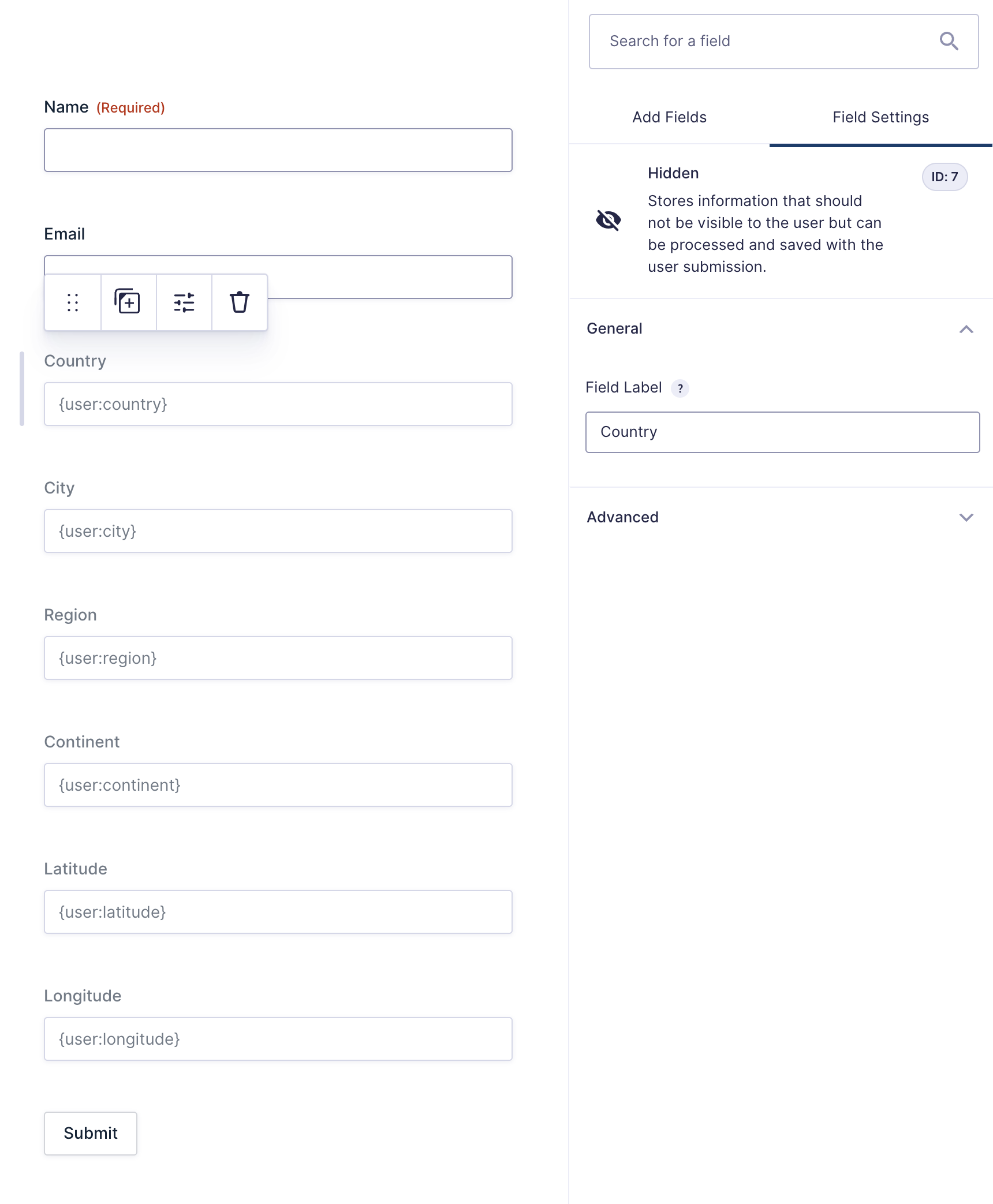
You can automatically capture a user’s location data in your form using hidden fields with these merge tags:
- Country: Add a hidden field with default value {user:country}
- City: Add a hidden field with default value {user:city}
- Region/State: Add a hidden field with default value {user:region}
- Continent: Add a hidden field with default value {user:continent}
- Latitude: Add a hidden field with default value {user:latitude}
- Longitude: Add a hidden field with default value {user:longitude}
Example setup
In your form editor:
- Add a hidden field
- In the default value box, enter the merge tag like {user:city}
- Repeat for each location data type you want to capture
When a user submits the form, these fields will be populated automatically and stored with the entry.
Here is a screenshot:
That’s about it! We hope you find this little plugin helpful.
Give it a whirl, and let us know what you think.