Protecting your WordPress website starts with regular updates, secure logins and backups you can restore. AI adds more convincing scams and new risks through the tools you connect to your site.
For a business owner, the useful question is whether someone is looking after these things consistently. A security plugin can help, but it cannot take responsibility for your website.
At Thrive, some of the checks we make cover XML-RPC access, login protection, public user information, version exposure and directory listing. Here is what those checks mean, where AI changes the risks, and what to prioritise.
Start with the security basics
Keep WordPress, plugins and themes updated. Remove software you no longer use, install from trusted sources and make sure someone checks that updates have completed successfully.
Use unique passwords and enable multi-factor authentication for administrators, hosting, domain registration and business email. Give each person their own account with only the permissions they need, then remove access when their work finishes.
Back up both website files and the database. Keep a protected copy separate from the live site and test restoration. Choose a schedule based on how much information you could afford to lose, especially if you take orders or bookings.
These priorities follow the guidance from WordPress and the Australian Cyber Security Centre:
- Hardening WordPress (WordPress developer documentation)
- Secure your website (Australian Cyber Security Centre)
Five WordPress security checks worth making
These checks help identify unnecessary exposure. They need to be interpreted in context: an accessible WordPress feature does not automatically mean a website has been hacked.
1 Review XML-RPC access
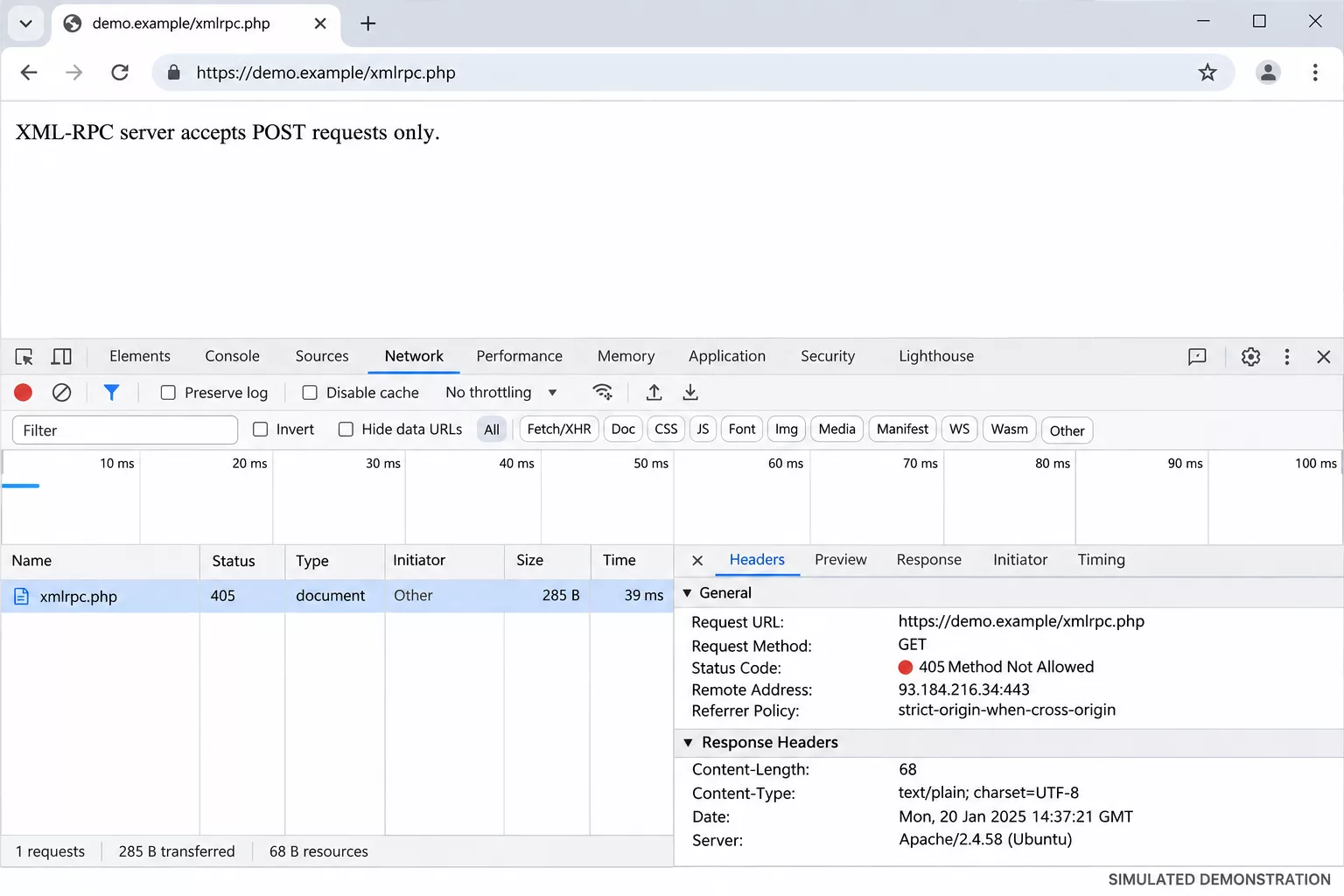
XML-RPC allows external applications to communicate with WordPress. Some integrations still depend on it.
We check whether xmlrpc.php is accessible and whether the website needs it. If it is unnecessary, ask your developer to restrict it. If it is required, review the available methods and protections before changing anything. Disabling it without checking dependencies can interrupt legitimate services.
WordPress reference: XML-RPC in the WordPress developer documentation
2 Check login protection
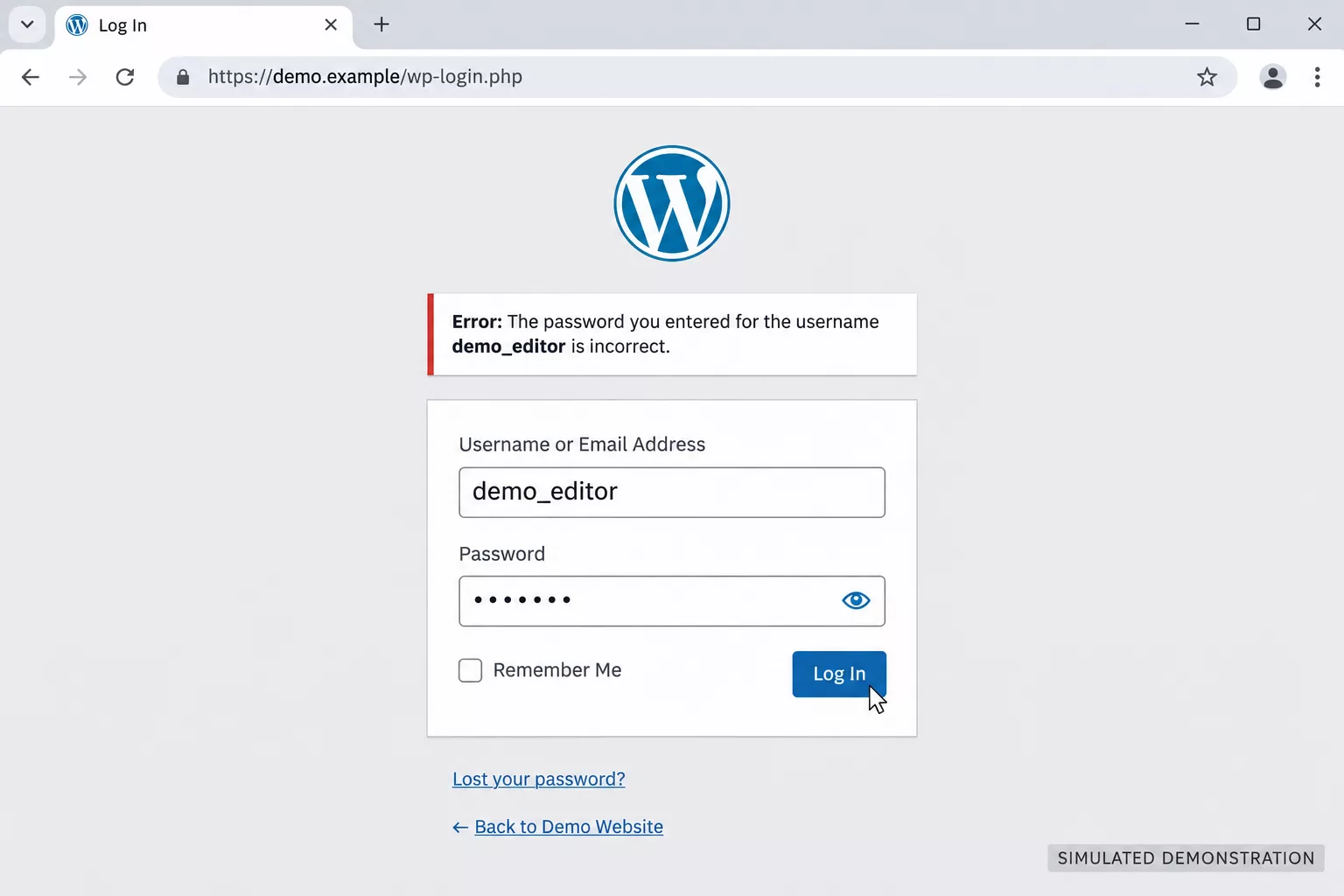
A publicly accessible wp-login.php page is normal for many WordPress websites. What matters is how well the accounts and login process are protected.
Use strong passwords, multi-factor authentication and limits on repeated login attempts. Review who has administrator access. Changing the login address can reduce some unwanted traffic, but it should be a secondary measure.
3 Review public REST API user information
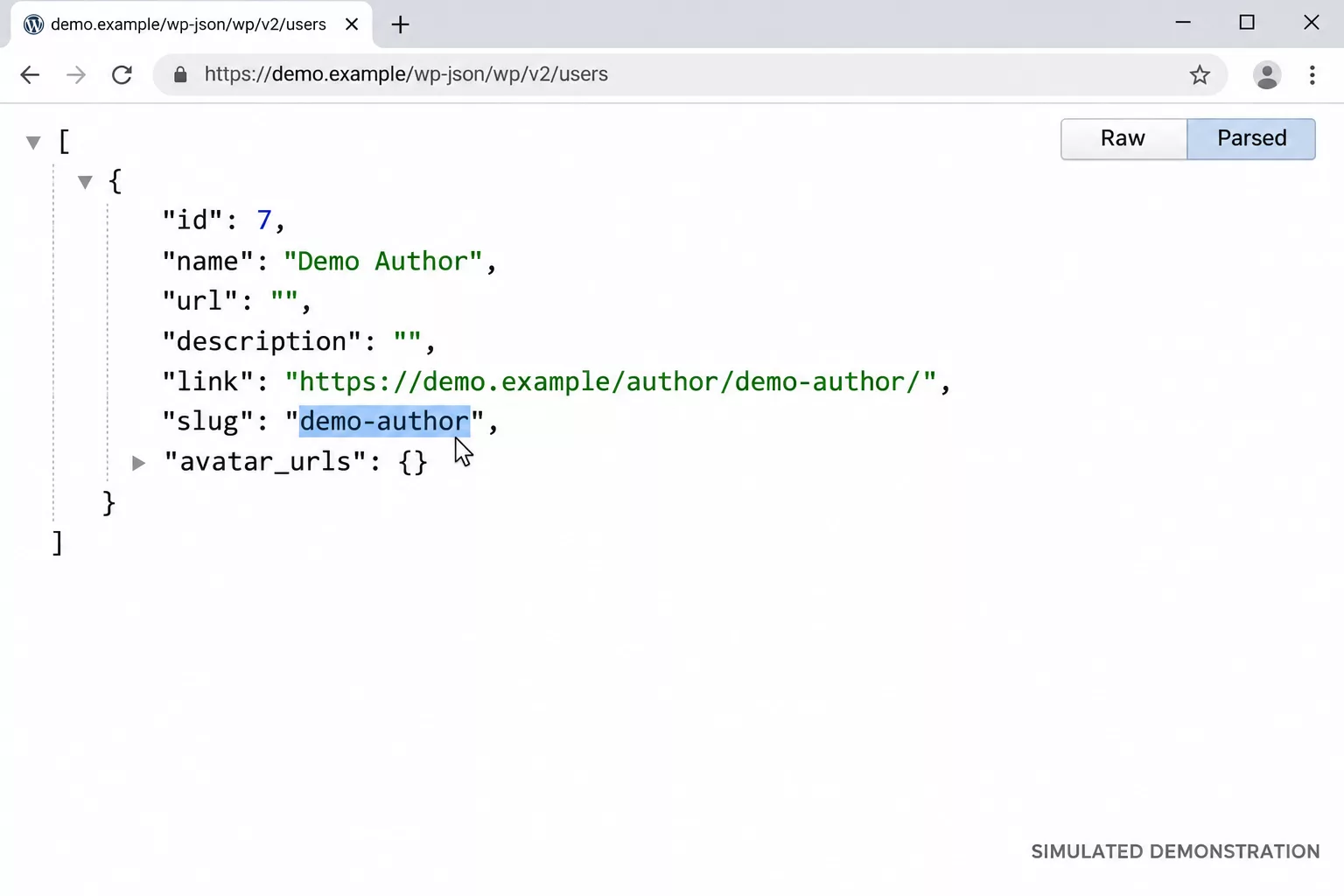
The WordPress REST API supports the editor and many integrations. Its users endpoint, /wp-json/wp/v2/users, can return public author information, depending on the site’s configuration.
We check what an unauthenticated visitor can see and whether that information needs to be public. Public author details are not the same as exposed passwords or unrestricted access to accounts.
Ask your developer to restrict unnecessary information while preserving the features your site uses.
WordPress reference: REST API users endpoint
4 Limit unnecessary version details
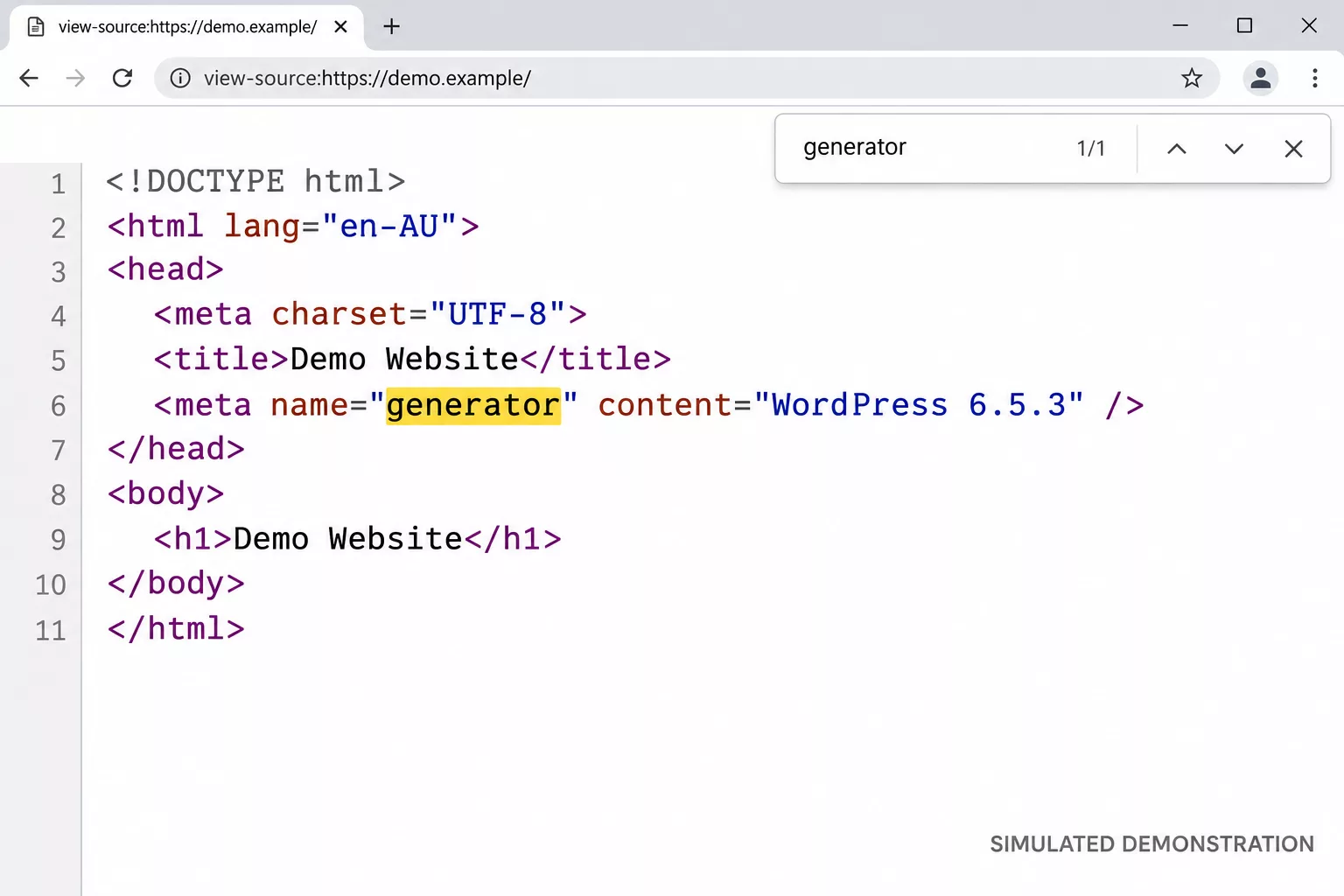
We check whether files such as readme.html reveal unnecessary WordPress details. Reducing that information can make casual inspection less useful.
It is a supporting measure. Hiding one file does not conceal every version clue or fix a vulnerable installation. Keeping the software updated matters much more.
5 Disable directory listing
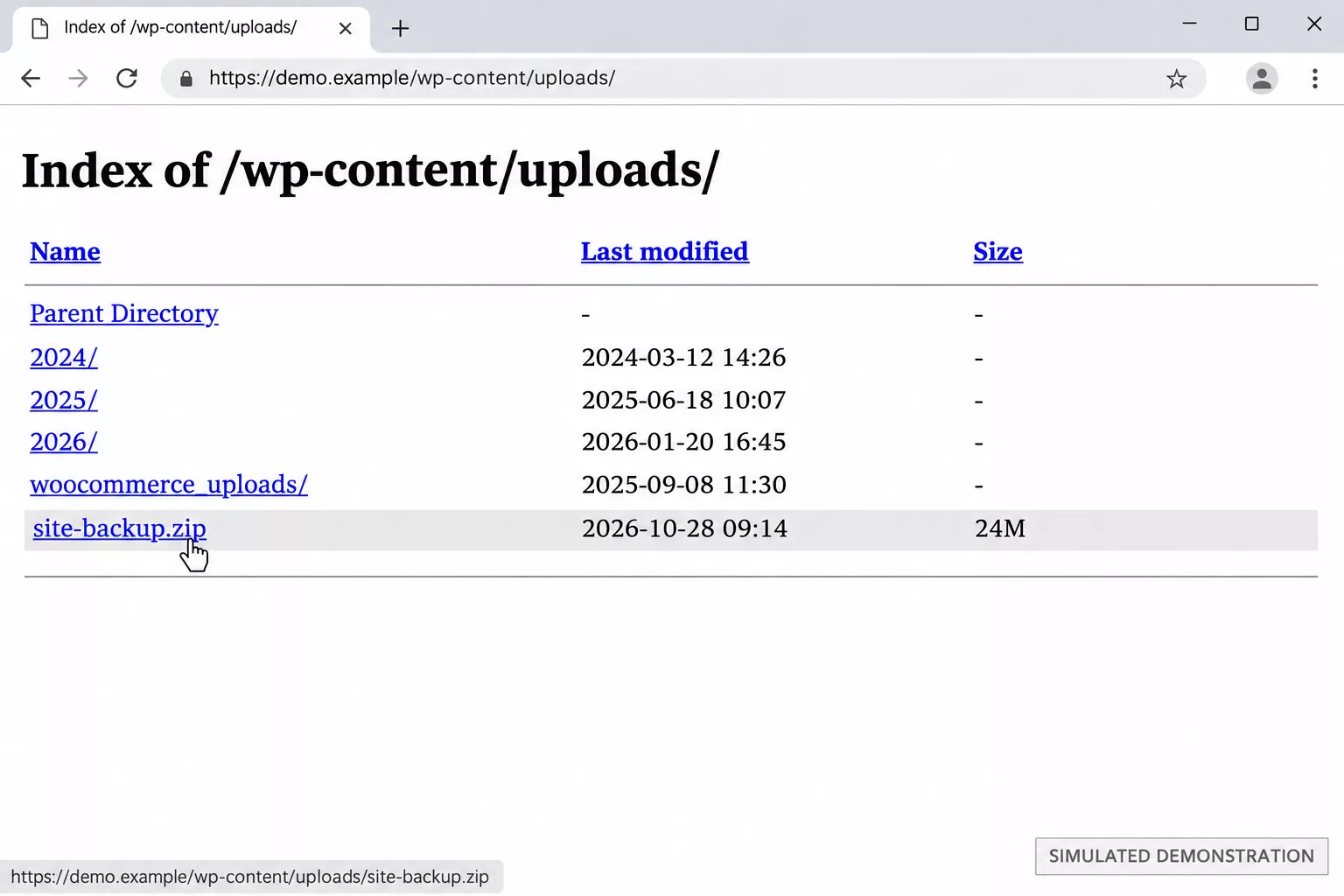
Directory listing can show a browser-generated list of files when someone visits a folder without an index page.
Disable automatic listings where they are unnecessary. Also remove old backups and test files from publicly accessible folders. Disabling a listing does not stop someone opening a file if they already know its address. Sensitive files need proper access controls or storage outside the public website.
Apache reference: mod_autoindex documentation
Where AI adds new security risks
More convincing scams
AI can help attackers research businesses and write believable messages. The UK’s National Cyber Security Centre assesses that AI will make parts of cyber attacks more effective and efficient.
For a website owner, that could look like a fake hosting renewal, an urgent plugin update notice or a message pretending to come from your developer.
Open the service through your usual bookmark and check there. Verify unexpected requests for passwords, security codes or administrator access using contact details you already trust.
Read the assessment: The impact of AI on the cyber threat, now to 2027 (NCSC)
Connected AI tools
AI assistants, chat widgets and automation plugins often ask for an application password, an API key or a connection to the REST API. Each one is another way into the site, and it keeps that access until someone removes it.
Give a connected tool its own user with the lowest role that works, note what it can reach, and remove the connection when you stop using the tool. Treat a request for administrator access from a tool the same way you would treat it from a person.
Use WP Scanner as a starting point
Our WP Scanner Chrome extension checks the WordPress website you are viewing for technical and SEO issues. It runs locally in your browser and gives a quick breakdown of its findings.
Use it to spot items that deserve a closer look. A browser scan cannot confirm that every plugin is safe, that backups can be restored or that an AI integration has suitable permissions. A green result on one check is not a guarantee that the whole site is secure.
Make security part of regular website care
Our advice is to put consistent maintenance first. Make someone responsible for updates, account access, backups and security alerts, whether that is a person in your business or your WordPress hosting and maintenance provider. Review AI permissions whenever you add or change a connected tool.
If you would like help reviewing your WordPress website, talk to Thrive. We can work out which findings need attention and which are expected for the way your site works.