You can use ChatGPT or Claude to write a post, save it in WordPress and make changes through the same conversation. Here’s a practical setup guide, followed by a prompt you can reuse.
Before you start: use an assistant with WordPress API access, such as a configured Codex or Claude Code setup, or a trusted WordPress connector. An ordinary chat cannot edit your website just because you give it a password.
1 Create an Application Password
Log in to WordPress and open Users → Profile. Scroll to Application Passwords.
- Enter a name such as AI blog drafts.
- Select Add Application Password.
- Copy the generated password and store it securely. WordPress only shows it once.
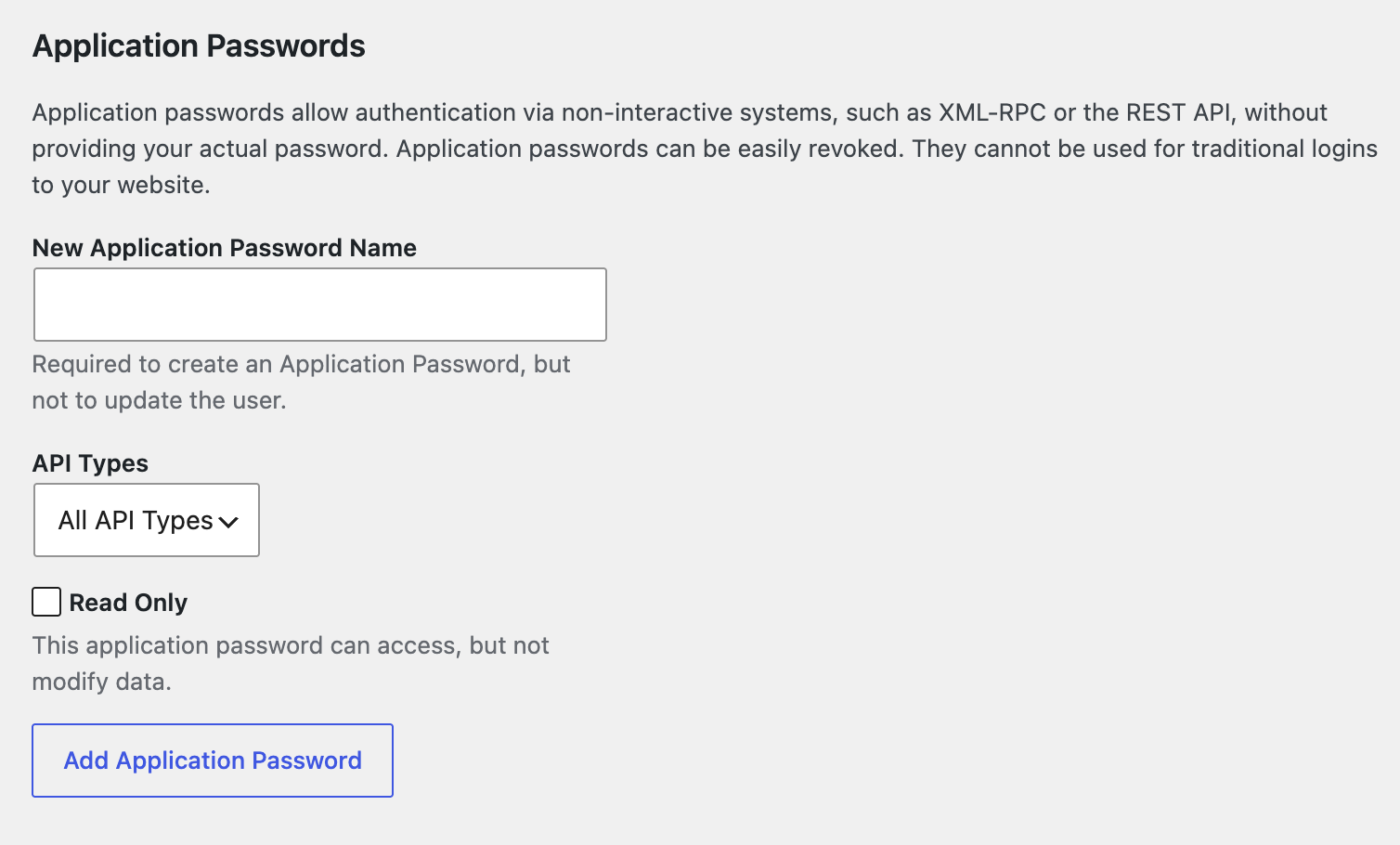
If your site shows API Types and Read Only, as in this screenshot, choose REST API access if available and leave Read Only unticked if you want to create drafts. These extra controls come from your site’s configuration and may not appear on every WordPress website.
Use your actual WordPress username, not the name you gave the Application Password. This password is separate from your normal login and can be revoked from the same screen.
2 Give your AI tool access
For direct API access, configure these details in your assistant’s secure credential settings or local secret store:
- Website: your full website address, including HTTPS.
- Username: your WordPress login username.
- Application Password: the password you just generated.
If you use a connector instead, follow its connection and sign-in steps. Claude has an official WordPress.com connector for eligible sites. Custom ChatGPT or Claude connectors need a working connector server, not just your website address. Ask your developer to configure this if needed.
Then test it with this prompt:
Confirm which WordPress website you can access and list three recent post titles.
Do not change anything yet. Tell me whether draft creation is supported.
Keep passwords out of saved prompt templates and shared documents. Use a WordPress account with only the permissions needed for the work.
3 Use a clear post brief
Give the assistant your notes, audience and publishing requirements together. Replace the details in square brackets:
Create a WordPress draft about [topic] for [audience].

Use these notes and examples: [your experience, key points and reference links]. Help readers [what they should learn or do].

Use Australian English, short paragraphs and simple language. Avoid jargon, em dashes and repeated points. Aim for [length]. Verify technical claims against current official sources and include links. Do not invent quotes, statistics or results.

Review two existing posts for our style. Choose the best section and category. Add an excerpt and fill in our required custom fields, including Extended Title if available. Check the actual field names first.

Create a minimal featured image in our brand colours at [dimensions]. Upload it, add alt text and set it as the featured image.

Save as a draft and return the edit link. Confirm the excerpt, custom fields and image were saved. Do not publish yet.
4 Review and refine
Open the WordPress preview and check the facts, headings, links and image. Make follow-up requests in the same conversation:
- “Shorten the introduction and get to the instructions sooner.”
- “Add this example from our work: [details].”
- “Update the same WordPress draft. Keep its featured image and draft status.”
The most useful input is your own experience. Give AI the details you would explain to a client, then use it to organise and save the post.
Setup references: